Thumbnail of product MX-3050N from brand Sharp
Logo of brand Sharp

Printer Sharp MX-3050N

The Sharp MX-3050N printer is a model recognized for its quality and innovation, offering optimal performance in the field of professional printing. This model is designed to meet the varied needs of users, whether in an office or a dynamic work environment.

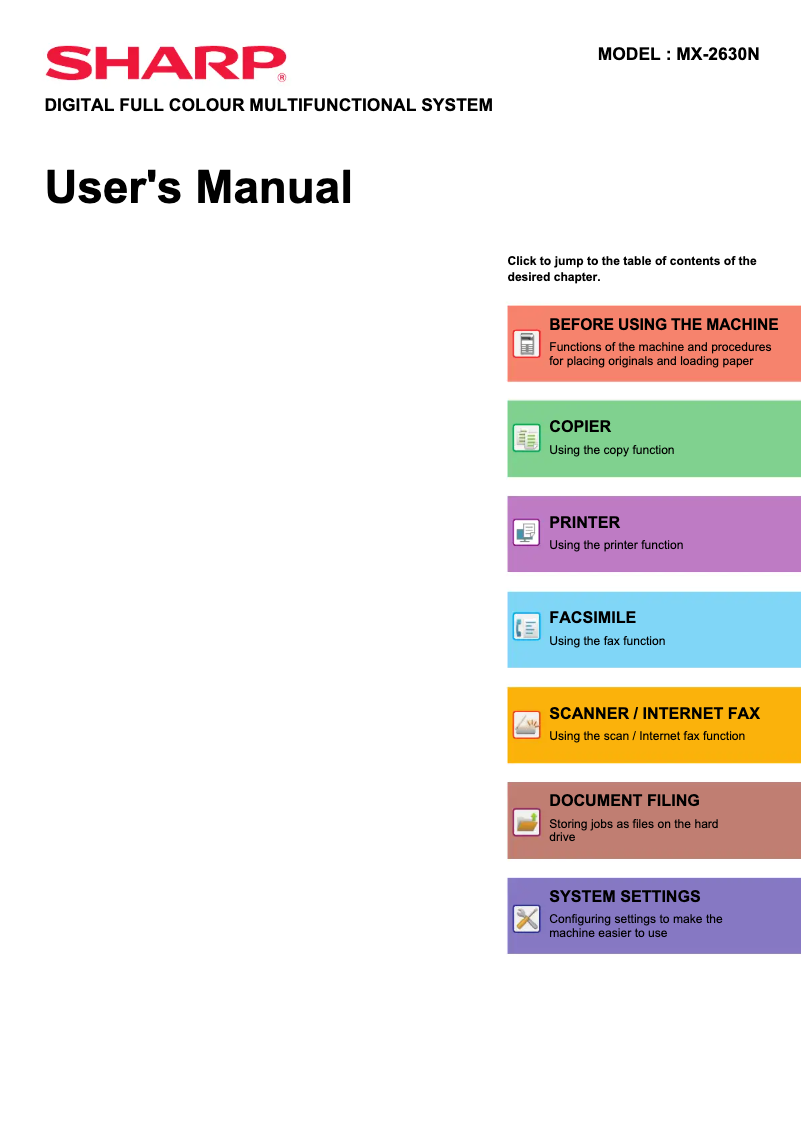
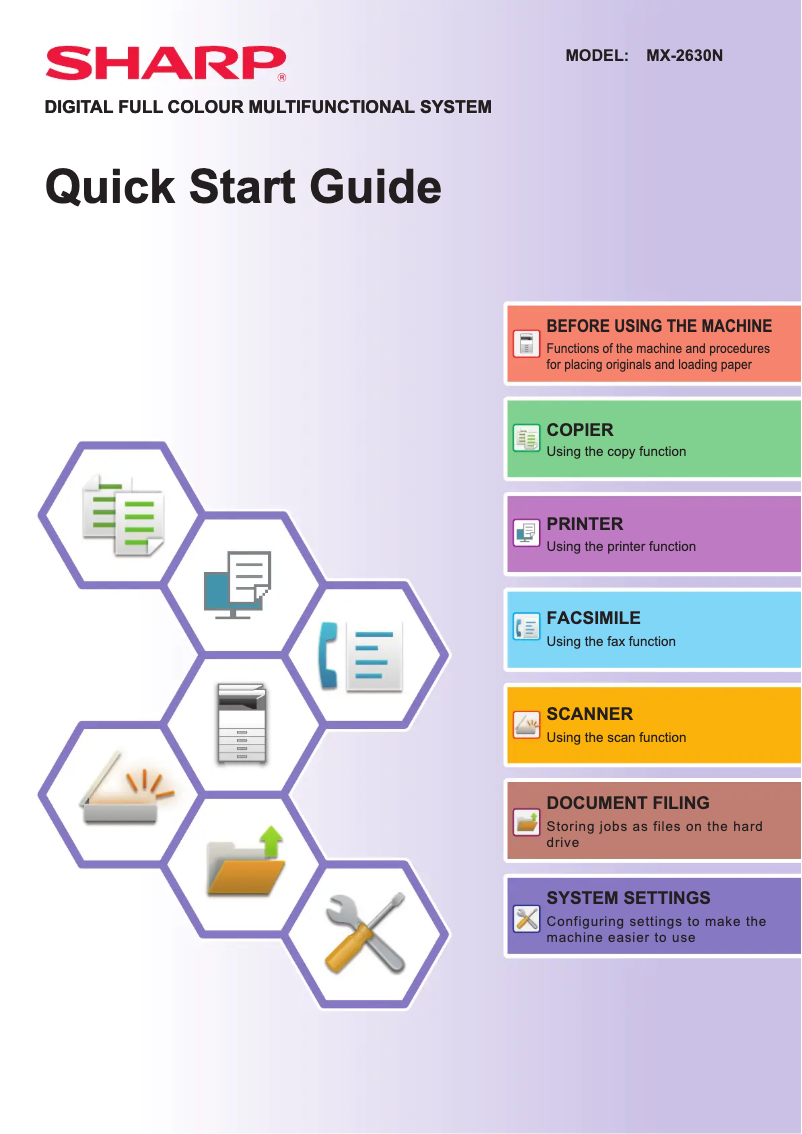
With the Sharp MX-3050N, you can expect fast and efficient printing, ideal for producing large quantities of documents. Additionally, this printer comes with two available documents to facilitate its use: a user manual and a quick start guide.

In summary, the Sharp MX-3050N is a wise choice for those seeking a reliable and high-performing printer, suited to the demands of a modern work environment.

Manuals of product MX-3050N
8 10

Editorial note

The Sharp MX-3050N printer stands out for its exceptional print quality, offering vibrant colors and precise details, making it an ideal choice for professional and creative documents. Its versatility is also a major asset, as it allows for printing, copying, scanning, and sending faxes. With its user-friendly interface and a quick start guide, setting up and using the printer is made easier, even for less experienced users. Additionally, its energy-efficient design helps reduce operational costs and environmental impact. However, the Sharp MX-3050N has some drawbacks. Its price is relatively high compared to other similar models, which may be a barrier for small businesses or individuals. Furthermore, its energy consumption is relatively high, leading to additional costs on electricity bills. Its heavy weight and large size also complicate transport and installation, especially in tight spaces. Finally, although the interface is simple, the complexity of some advanced features may require training, resulting in a learning curve. In summary, the Sharp MX-3050N is a high-quality multifunction printer that is perfectly suited for office environments requiring professional prints. However, its cost and size should be considered when evaluating its suitability for your specific use.

Score details

User experience

The user experience is very positive thanks to a user-friendly interface and a quick start guide, making setup and use easier.

Performance

The print quality is exceptional, offering vibrant colors and precise details, although the initial print delay can be long.

Features

The printer's versatile features, including printing, copying, scanning, and faxing, make it a comprehensive tool for offices.

Value for money

The price is relatively high compared to other similar models, which may deter some small businesses or individual users.

Usability

Although the interface is simple, the complexity of some advanced features may require training, leading to a learning curve.

Robustness

The printer's heavy weight and large size can complicate transport and installation, especially in tight spaces.

Battery life

The energy consumption is relatively high, which can lead to additional costs on the electricity bill.


Advantages

High-quality prints and vibrant colors.

Multiple features: printing, copying, scanning, faxing.

User-friendly interface and quick setup.

Reduced energy consumption and eco-friendly.

Accessible documentation and user support.

Disadvantages

High cost for small businesses.

Significant energy consumption.

Bulky weight and size.

Long initial printing time.

Complex features requiring training.

Technical Specifications MX-3050N

General Information

Frequently Asked Questions

What is the recommended method for removing paper jammed in the printer?
To remove jammed paper from the printer, it is advisable to proceed with caution. Turn off the printer and ensure that the print head is not in contact with the paper and that no pieces of paper remain inside. Q: Why is my printer rejecting original cartridges? A: Non-official cartridges may not be accepted by the printer. In this case, a message will appear indicating that the cartridge is empty. The manual for the purchased cartridge often provides solutions, and if the problem persists, it is recommended to contact the seller. Q: What are the possible reasons for poor print quality? A: Unsatisfactory print quality can be due to several factors. Check that the cartridges or toners are full. For inkjet printers, cleaning may be necessary if the cartridges are dry or if the print head is damaged. For laser printers, calibration may be helpful. Q: How does a laser printer differ from an inkjet printer? A: A laser printer uses toner while an inkjet printer operates with ink. Q: Why is my inkjet printer leaving black streaks on prints? A: In most cases, this means that the inkjet printer cartridge is damaged and needs to be replaced. Q: What does the acronym DPI mean? A: DPI stands for Dots Per Inch and indicates the number of ink droplets projected per inch on the paper during printing. Q: How do I load paper into the printer? A: To load paper into the Sharp MX-3050N, start by opening the paper tray by pulling it towards you. Then, place the paper in the tray, ensuring it is properly aligned, and adjust the paper guides as needed. Finally, close the tray securely. Q: What is the process for scanning a document with the printer? A: To scan a document, start by placing it on the glass or in the ADF. Then, press the scan button on the control panel and choose your scanning preferences, such as resolution and file format. Finally, press the start button to begin scanning. Q: What should I do if the printer is jammed? A: In case of a paper jam in the Sharp MX-3050N, open the covers and trays indicated by the error message. Carefully remove any jammed paper, ensuring not to tear it. Check that no pieces of paper remain inside the printer. Then, close all covers properly before resuming printing. Q: How do I set up a wireless connection for the printer? A: To establish a wireless connection, press the settings button on the control panel and access the network settings menu. Select the wireless local area network setup option and follow the on-screen instructions to search for and connect to your wireless network. If necessary, enter the network password, and once connected, the printer will be ready for wireless printing. Q: Is the manual for the Sharp MX-3050N available in French? A: Unfortunately, the manual for the Sharp MX-3050N is not available in French. It is only offered in English.
Pourquoi mon imprimante refuse-t-elle les cartouches d'origine ?
Les cartouches non officielles peuvent ne pas être acceptées par l’imprimante. Dans ce cas, un message apparaîtra pour indiquer que la cartouche est vide. Le manuel de la cartouche achetée propose souvent des solutions, et en cas de problème persistant, il est recommandé de contacter le vendeur. 189
Quelles sont les raisons possibles d'une mauvaise qualité d'impression ?
Une qualité d’impression insatisfaisante peut être due à plusieurs facteurs. Vérifiez que les cartouches ou toners sont pleins. Pour les imprimantes à jet d’encre, un nettoyage peut être nécessaire si les cartouches sont sèches ou si la tête d’impression est endommagée. Pour les imprimantes laser, un calibrage peut être utile. 283
En quoi une imprimante laser diffère-t-elle d'une imprimante à jet d'encre ?
Une imprimante laser utilise du toner tandis qu'une imprimante à jet d'encre fonctionne avec de l'encre. 51
Pourquoi mon imprimante à jet d'encre laisse-t-elle des rayures noires sur les impressions ?
Dans la majorité des cas, cela signifie que la cartouche de l'imprimante à jet d'encre est endommagée et nécessite un remplacement. 113
Que signifie l'acronyme DPI ?
DPI signifie Dots Per Inch (points par pouce) et indique le nombre de gouttelettes d'encre projetées par pouce sur le papier lors de l'impression. 49
Comment insérer du papier dans l'imprimante ?
Pour charger le papier dans la Sharp MX-3050N, commencez par ouvrir le bac à papier en le tirant vers vous. Ensuite, placez le papier dans le bac, en vous assurant qu'il est bien aligné, et ajustez les guides papier selon les besoins. Fermez ensuite le bac correctement. 0
Quel est le processus pour numériser un document avec l'imprimante ?
Pour numériser un document, commencez par le placer sur la vitre ou dans l'ADF. Ensuite, appuyez sur le bouton de numérisation sur le panneau de contrôle et choisissez vos préférences de numérisation, comme la résolution et le format de fichier. Enfin, appuyez sur le bouton de démarrage pour lancer la numérisation. 0
Que faire si l'imprimante est bloquée ?
En cas de bourrage papier dans le Sharp MX-3050N, ouvrez les couvercles et les plateaux indiqués par le message d'erreur. Retirez délicatement tout papier coincé, en veillant à ne pas le déchirer. Vérifiez qu'aucun morceau de papier ne reste à l'intérieur de l'imprimante. Fermez ensuite tous les couvercles correctement avant de reprendre l'impression. 0
Comment configurer une connexion sans fil pour l'imprimante ?
Pour établir une connexion sans fil, appuyez sur le bouton des paramètres sur le panneau de contrôle et accédez au menu des paramètres réseau. Sélectionnez l'option de configuration du réseau local sans fil et suivez les instructions à l'écran pour rechercher et vous connecter à votre réseau sans fil. Si nécessaire, saisissez le mot de passe du réseau, et une fois connecté, l'imprimante sera prête pour l'impression sans fil. 0
Le manuel du Sharp MX-3050N est-il disponible en français ?
Malheureusement, le manuel du Sharp MX-3050N n'est pas disponible en français. Il est uniquement proposé en anglais.

Similar products


Discover the technical sheet of E514dw from Dell and its manuals...
Available manuals:
Discover the technical sheet of MP C306ZSP from Ricoh and its manuals...
Available manuals:
Discover the technical sheet of MX-M356N from Sharp and its manuals...
Available manuals:
Discover the technical sheet of imageCLASS MF624Cw from Canon and its manuals...
Available manuals:
Discover the technical sheet of MP C306ZSPF from Ricoh and its manuals...
Available manuals:
Discover the technical sheet of imageCLASS MF232w from Canon and its manuals...
Available manuals:
Discover the technical sheet of SL-M2020W from Samsung and its manuals...
Available manuals:
Discover the technical sheet of MX-2700N from Sharp and its manuals...
Available manuals:
Discover the technical sheet of MX-2300G from Sharp and its manuals...
Available manuals:
Discover the technical sheet of MX-3500N from Sharp and its manuals...
Available manuals:
Discover the technical sheet of MX-M260N from Sharp and its manuals...
Available manuals:
Discover the technical sheet of MX-M260 from Sharp and its manuals...
Available manuals:

Presentation of product MX-3050N specifications from brand Sharp

General Information

The Sharp MX-3050N stands out due to the reputation of the Sharp brand, known for its expertise in innovation and quality in the office equipment sector. Designed to deliver superior performance, this multifunction device meets the diverse needs of modern work environments.

Features and Functions

The Sharp MX-3050N is much more than just a printer. In fact, it combines printing, copying, scanning, and faxing functions, making it a versatile and essential tool for offices. With an intuitive user interface and a quick start guide, it is easy to set up, even for those with little experience with this type of equipment.

Advantages

  • Exceptional print quality: Prints made with the MX-3050N feature vibrant colors and remarkable accuracy, ideal for professional documents or creative projects.
  • Versatility: Its ability to handle multiple functions makes it indispensable in a dynamic work environment.
  • Energy efficiency: This model is designed to minimize energy consumption, helping to reduce operating costs as well as the ecological footprint.
  • User support: The product comes with a detailed manual and a startup guide, making it easier to use.

Disadvantages

  • Cost: Its price may be considered high compared to other similar models, which can be a problem for some small businesses or individual users.
  • Energy consumption: Although it is economically designed, its energy consumption can be relatively high, leading to additional costs on the electricity bill.
  • Dimensions: Its heavy weight and large size can complicate transport and installation, especially in tight spaces.
  • Print delay: The initial wait time for printing can be long, which can be a disadvantage in environments where speed is essential.
  • Complexity: Advanced features may require training, which can lead to a learning curve for users.