

Manuals of product M6550
Editorial note
The Pantum M6550 printer stands out for its high print quality, delivering sharp and professional results, making it ideal for both personal documents and those for professional use. Its versatility is also a major asset, as it allows not only printing but also copying and scanning, thus meeting various office needs. Despite these advantages, some points could be improved. The print speed is lower than that of some competitors, which could be an issue for users with high print volumes. Additionally, the cost of toner cartridges can be relatively high, leading to additional expenses in the long run. The user interface, while generally intuitive, may pose challenges for less experienced users, and wireless connectivity can sometimes be unstable, resulting in interruptions during printing. Finally, the printer can be noisy, which could be disruptive in a quiet work environment. Regarding the user experience, handling is facilitated by comprehensive documentation, including a user manual and a well-designed FAQ. Technical support is accessible, allowing for easy resolution of common issues. The modern and functional design of the device fits well in an office, and its robustness makes it suitable for regular use. In summary, the Pantum M6550 is an interesting choice for those looking for a versatile printer, although financial and performance considerations should be taken into account.Score details
User experience
The user experience is generally positive due to the user-friendly interface and the user manual, but some users may find the interface less intuitive.
Performance
The print quality is high, but the print speed may be lower than that of some competitors, which can be a disadvantage for users with high print volumes.
Design
The design of the printer is modern and functional, well-suited for a office environment.
Value for money
The cost of toner cartridges can be relatively high, which increases long-term expenses for users.
Support
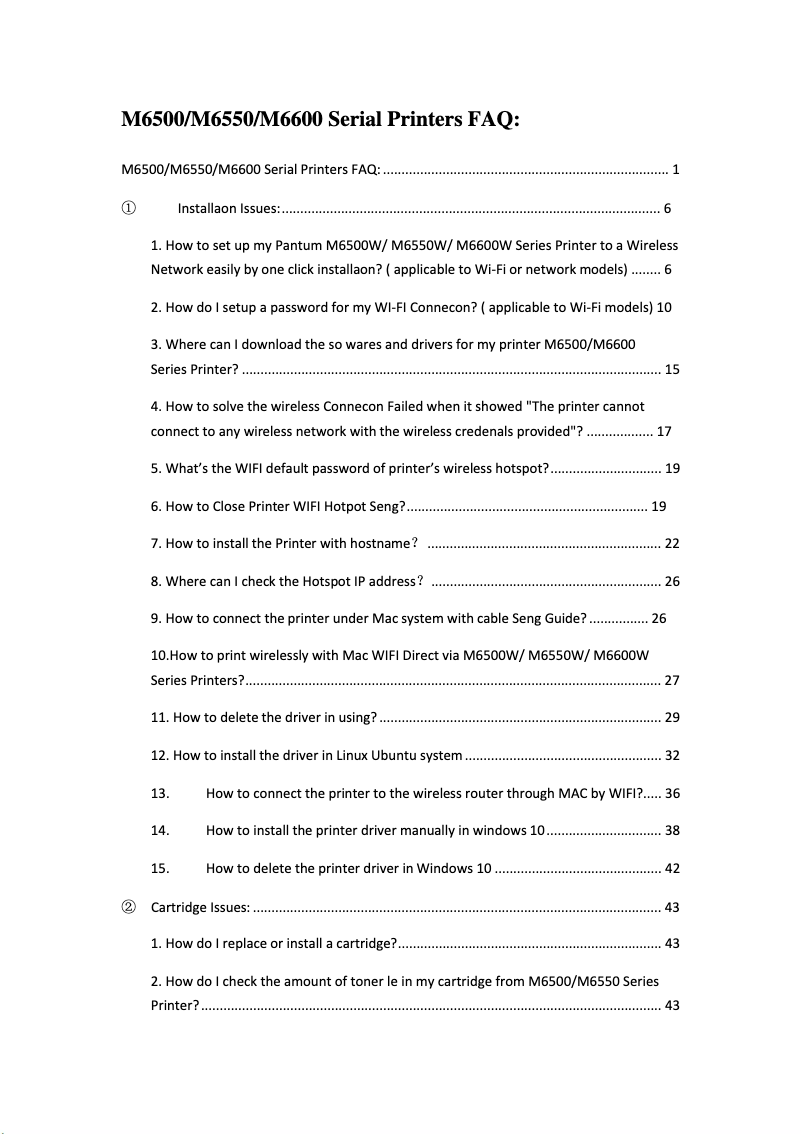
Technical support is accessible with documents like the FAQ, making it easier to resolve common issues.
Usability
Although the interface is generally intuitive, some less experienced users may encounter difficulties during setup and use.
Robustness
The printer is robust and suitable for regular use, but it can be noisy during printing.
Features
The versatility of the printer, which allows for printing, copying, and scanning, meets various office needs.
Documentation
The documentation is comprehensive, with a user manual and FAQ that cover most questions and issues.
Advantages
Clear and high-quality prints
Printing, copying, and scanning features
User-friendly and easy-to-use interface
Reduced energy consumption
Access to helpful technical support
Disadvantages
Print speed lower than some competitors
Relatively high cost of toners
User interface not very intuitive
Unstable wireless connectivity
Noisy printer during printing
Technical Specifications M6550
General Information
-
ModelM6550
-
Brand
-
Category
-
Type
-
SKU1453309
-
MPN1453309
Frequently Asked Questions
What is the recommended method for removing paper jammed in the printer?
Why is my printer not recognizing the original cartridges?
What could be the reasons for poor print quality?
How does a laser printer differ from an inkjet printer?
Why is my inkjet printer printing black streaks?
What does the acronym DPI mean?
Why won't my printer turn on?
How can I resolve paper jams in the printer?
How can I improve print quality?
What should I do when the printer displays error codes?
How do I connect my wireless printer to my computer?
Is the manual for the Pantum M6550 available in French?
Similar products


More product categories from brand Pantum
More product types from brand Pantum

Presentation of product M6550 specifications from brand Pantum
General Information
The Pantum M6550 printer, manufactured by the Pantum brand, stands out for its reputation for excellence and innovation in the home appliance sector. This model, M6550, is designed to deliver high-level performance, thus ensuring an enhanced user experience.
Advantages
The Pantum M6550 is distinguished by its high print quality, producing documents with remarkable clarity, making it particularly suitable for both professional and personal use. As a multifunction printer, it is not limited to printing but also allows for copying and scanning, thus meeting various office needs.
Its user-friendly interface makes it easy to handle, allowing users to get started quickly, supported by an accessible user manual. Additionally, the Pantum M6550 is designed to be energy efficient, helping to reduce operating costs while minimizing its environmental impact. Technical support, including documents such as FAQs, is also available to assist in resolving common issues.
Disadvantages
However, some points may be considered disadvantages. The print speed may be lower than that of some competing models, which can pose a challenge for users with high print volumes. Furthermore, the cost of toner cartridges can be relatively high, leading to additional long-term expenses.
The user interface, while generally user-friendly, is not always intuitive, which can complicate setup for less experienced users. The wireless connectivity may also prove unstable, risking interruptions when printing from mobile devices or computers. Finally, it is worth noting that the printer can be noisy during operation, which may disrupt a quiet work environment.


