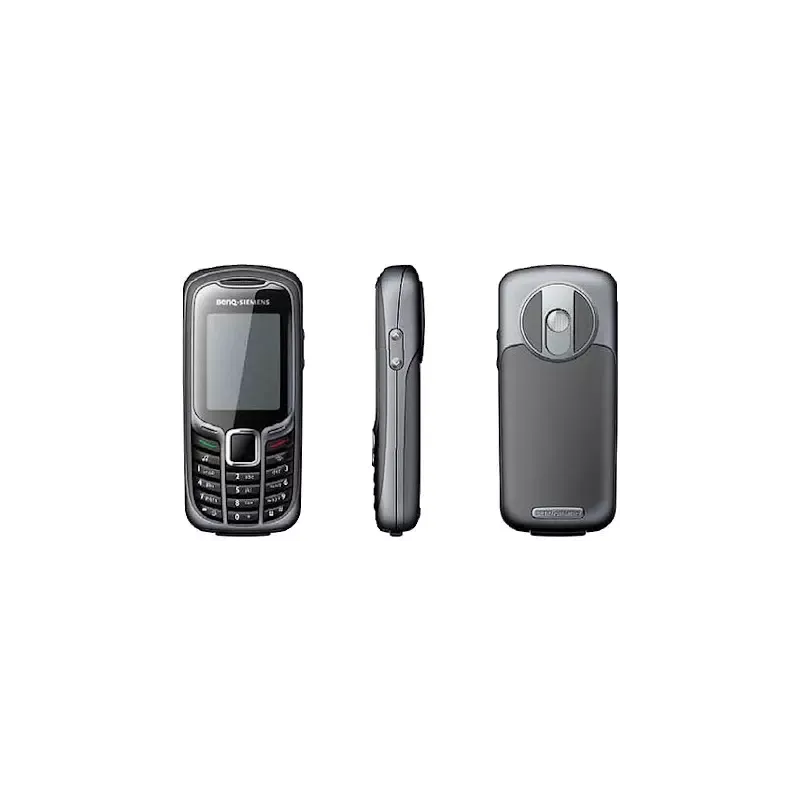
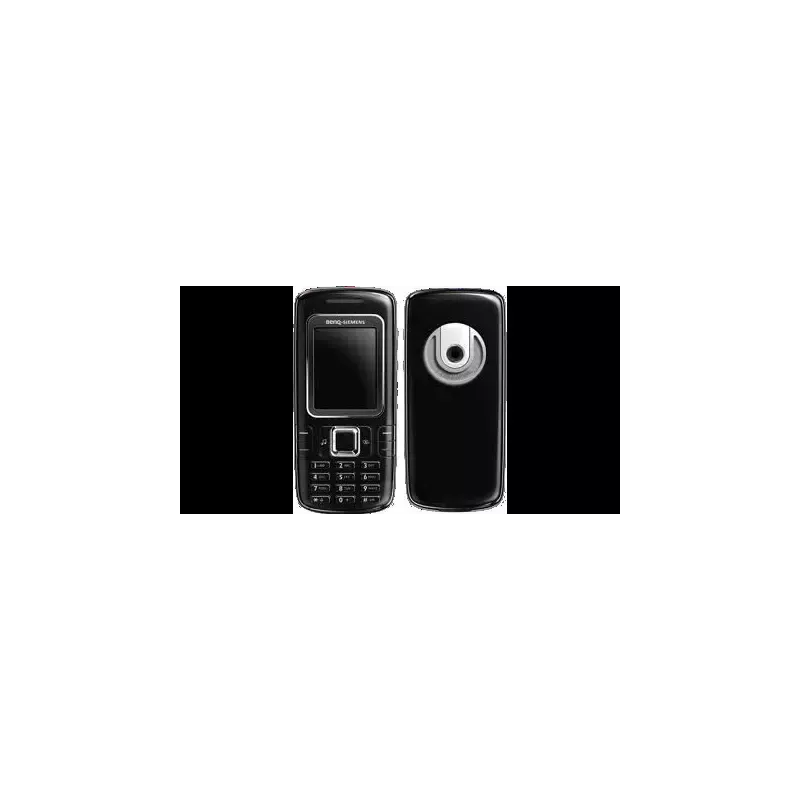
Thumbnail of product Gleam plus from brand Motorola
Logo of brand Motorola

Mobile phone Motorola Gleam plus

The Motorola Gleam Plus is a mobile phone designed to provide an intuitive and enjoyable user experience. Manufactured by the brand Motorola, known for its quality and innovation, this model stands out for its optimal performance.

With a modern and elegant design, the Motorola Gleam Plus combines functionality and style. This phone is ideal for those looking for a reliable device for daily communications, whether for making calls or sending messages.

The Gleam Plus model also comes with a user manual that guides users through its features, ensuring smooth usage. In summary, the Motorola Gleam Plus is a practical choice for those who want a simple, efficient, and quality phone.

Manual of product Gleam plus

7 10

Editorial note

The Motorola Gleam plus stands out for its reliability, a quality recognized by the Motorola brand. With a design that is both modern and practical, this mobile phone offers an enhanced user experience thanks to its intuitive interface and smooth operation. Additionally, the included user manual is an asset, making it easier to grasp the product's features. However, there are some drawbacks to consider. The limited storage capacity may pose issues for those who require a lot of space for their applications and files. Furthermore, although the screen is acceptable, it may lack definition and brightness compared to current standards. The battery, on the other hand, tends to drain quickly during intensive use, necessitating frequent recharges. Finally, the operating system may seem outdated, and the materials used in the design do not convey a premium feel compared to other contemporary models. Overall, the Motorola Gleam plus offers good value for money. Its performance is adequate for browsing and communications, even if some technical limitations may disappoint users seeking more advanced features.

Score details

User experience

The user experience is enhanced by an intuitive interface and smooth operation, although some users may find the operating system outdated.

Performance

Performance is generally good for browsing and communications, but the limited storage capacity may be an issue for users with high demands.

Battery life

The battery drains relatively quickly during intensive use, requiring frequent recharges.

Design

The design is sleek and modern, but the materials used may seem less premium compared to contemporary models.

Value for money

The Motorola Gleam Plus offers good value for money, although some technical limitations may disappoint users looking for high-end features.

Documentation

The included user manual makes it easy to get started with the product, allowing users to make the most of its features.


Advantages

Recognized reliability of the Motorola brand

Intuitive interface and smooth operation

Modern and practical design

User manual included for easy handling

High performance for browsing and applications

Disadvantages

Limited storage capacity

Screen lacks definition and brightness

Battery drains quickly

Outdated operating system

Design and materials not premium

Technical Specifications Gleam plus

General Information

Frequently Asked Questions

How can I resolve Internet connectivity issues on my Motorola Gleam plus?
To resolve Internet connectivity issues on your Motorola Gleam plus, follow these steps: 1. Check the network signal: Ensure the signal is strong by looking at the signal bars on the screen. If the signal is weak or nonexistent, move to an area with better coverage. 2. Enable mobile data: Make sure mobile data is turned on. Go to settings and access the 'Network and Internet' or 'Connections' section to enable the 'Mobile data' option. 3. Restart the device: Sometimes, a restart is enough to fix connectivity issues. Turn off your phone, wait a few seconds, then turn it back on. 4. Reset network settings: If the problem persists, try resetting the network settings in the phone settings under 'Network and Internet' or 'Connections'. This will remove saved Wi-Fi networks and Bluetooth pairings. 5. Contact your service provider: If none of the above steps work, it is advisable to contact your provider for assistance. They can check for network or configuration issues. By following these instructions, you should be able to resolve Internet connectivity issues on your Motorola Gleam plus.
How can I resolve Bluetooth™ pairing issues on my Motorola Gleam plus?
To fix Bluetooth™ pairing issues on your Motorola Gleam plus, follow these steps: 1. Check Bluetooth™ settings: Go to settings and navigate to the 'Bluetooth' section to ensure this feature is enabled. 2. Ensure the device is visible: In the Bluetooth settings, check that your phone is visible to other devices. 3. Restart the phone and the Bluetooth device: A restart can sometimes resolve pairing issues. Turn off and turn on your phone as well as the Bluetooth device. 4. Remove old pairings: If you are having trouble connecting to a specific device, remove the previous pairing from both devices. In the Bluetooth settings, select the device to remove and follow the instructions. 5. Retry pairing: Put the Bluetooth device in pairing mode and search for it on your phone. Select it from the list and follow the on-screen instructions to complete the pairing. By following these steps, you should be able to resolve Bluetooth™ pairing issues on your Motorola Gleam plus.
What should I do if the radio on my Motorola Gleam plus is not working?
To resolve radio issues on your Motorola Gleam plus, follow these steps: 1. Check radio settings: Go to settings and navigate to the 'Radio' or 'FM Radio' section to ensure the radio is enabled and the volume is set. 2. Plug in the headset: The radio requires a headset to function as an antenna. Make sure it is properly connected. 3. Tune into a station: Once the headset is connected, open the radio app and select a station using the app's controls. Ensure the frequency is supported. 4. Check the signal: If you are not receiving stations, check the signal strength in the app. If the signal is weak, move to a better reception area or adjust the position of the headset. 5. Restart the phone: If the radio still does not work, turn off and turn on the phone, then reopen the radio app. By following these steps, you should be able to resolve radio issues on your Motorola Gleam plus.
How can I resolve photo and video capture issues on my Motorola Gleam plus?
To resolve photo and video capture issues on your Motorola Gleam plus, follow these steps: 1. Check camera settings: Open the camera app and ensure the photo or video mode is selected, along with other settings such as flash and resolution. 2. Clean the lens: Dirt on the lens can affect quality. Use a soft cloth to gently clean it. 3. Ensure you have enough light: Good lighting is essential for clear shots. Make sure the subject is well-lit, and use the flash if necessary. 4. Check storage space: If you cannot take photos or videos, ensure there is enough available space. Delete unnecessary files if needed. 5. Restart the phone: If the problem persists, restart your phone, then reopen the camera app. By following these steps, you should be able to resolve photo and video capture issues on your Motorola Gleam plus.
What tips can I follow to improve the performance of my Motorola Gleam plus?
To optimize the performance of your Motorola Gleam plus, consider the following tips: 1. Clear cache and unnecessary files: Regularly clear the cache and delete unnecessary files to free up space and improve performance. Go to settings, then 'Storage' or 'Memory' to clear the cache. 2. Close unused apps: Keeping multiple apps open can slow down the system. Close those you are not using via the app switcher or task manager. 3. Update the software: Keep your phone updated by installing the latest updates, which often include fixes and improvements. 4. Limit widgets and live wallpapers: While aesthetic, they can consume resources. Reduce the number of widgets and opt for static wallpapers. 5. Restart regularly: A restart can help refresh the system. It is advisable to restart your phone at least once a week to maintain good performance. By applying these tips, you can improve the performance of your Motorola Gleam plus.
How can I resolve Internet connectivity issues on my Motorola Gleam plus?
To resolve Internet connectivity issues on your Motorola Gleam plus, follow these steps: 1. Check the network signal: Ensure you have a good signal by looking at the bars on the screen. If the signal is weak, move to an area with better coverage. 2. Enable mobile data: Make sure mobile data is enabled in the phone settings under 'Network and Internet' or 'Connections'. 3. Restart your phone: Sometimes, a simple restart is enough to fix connection issues. Turn off and turn on your device. 4. Reset network settings: If the problem persists, go to settings and reset the network settings. This will remove saved Wi-Fi networks and Bluetooth pairings. 5. Contact your service provider: If nothing works, contact your provider for assistance. They can check for network or configuration issues. By following these steps, you should be able to resolve Internet connectivity issues on your Motorola Gleam plus.
How can I resolve Bluetooth™ connection issues on my Motorola Gleam plus?
To resolve Bluetooth™ connection issues on your Motorola Gleam plus, follow these steps: 1. Check Bluetooth™ settings: Go to settings and ensure Bluetooth is enabled. 2. Put the device in pairing mode: Make sure the device you want to connect is in pairing mode. Select it from the list of available devices and follow the instructions. 3. Restart the devices: If the connection does not establish, restart your phone and the Bluetooth device. This can help refresh the connection. 4. Forget and re-pair: If it still does not work, forget the device on your phone and try to pair it again. Go to Bluetooth settings, select the device, and choose the forget option. 5. Update the software: Ensure your phone's software is up to date. Check for available updates and install them if necessary. Sometimes, this can resolve compatibility issues. By following these steps, you should be able to resolve Bluetooth™ connection issues on your Motorola Gleam plus.
How can I resolve radio reception issues on my Motorola Gleam plus?
To resolve radio reception issues on your Motorola Gleam plus, follow these steps: 1. Check signal strength: Ensure you are in an area with good radio signal. If the signal is weak, move. 2. Eliminate obstructions: Make sure no objects are blocking the radio waves. Clear the area around the phone to improve reception. 3. Adjust the position of the phone: Hold your phone in different positions to optimize reception. Avoid covering the antenna with your hands. 4. Disable battery saver mode: If this mode is enabled, it may affect reception. Disable it in settings if necessary. 5. Restart your device: A restart can resolve reception issues. Turn off your phone, wait a few seconds, then turn it back on. By following these steps, you should be able to resolve radio reception issues on your Motorola Gleam plus.
How can I resolve photo and video capture issues on my Motorola Gleam plus?
To resolve issues related to photo and video capture on your Motorola Gleam plus, follow these steps: 1. Check camera settings: Ensure the camera settings are properly configured. Open the app and check settings such as resolution and flash. 2. Clear the camera app cache: If you are experiencing issues, clearing the cache can help. Go to settings, then 'Apps', find the camera app, and clear its cache. 3. Restart the phone: Sometimes, a simple restart can fix issues. Turn off and turn on your device. 4. Free up storage space: Lack of space can affect camera performance. Delete unnecessary files to free up space. 5. Update the software: Check that your software is up to date. Look for updates and install them if necessary to improve performance. By following these steps, you should be able to resolve photo and video capture issues on your Motorola Gleam plus.
How can I resolve music playback issues on my Motorola Gleam plus?
To resolve music playback issues on your Motorola Gleam plus, follow these steps: 1. Check the format of the music files: Ensure the files you are trying to play are in a compatible format, such as MP3, MIDI, or AMR. If not, you will need to convert them. 2. Check the location of the music: Ensure your files are stored correctly. You can use a microSD card and transfer the files via USB cable by dragging them. 3. Restart the phone: A restart can often fix playback issues. Turn off your device, wait a few seconds, then turn it back on. 4. Check the volume: Ensure the volume is not muted or too low. Use the volume buttons to adjust the sound. 5. Update the software: Ensure your phone's software is up to date. Check for available updates and install them if necessary. This can sometimes resolve playback issues. By following these steps, you should be able to resolve music playback issues on your Motorola Gleam plus.
Is the manual for the Motorola Gleam plus available in French?
Yes, the manual for the Motorola Gleam plus is available in French.

Similar products


Discover the technical sheet of C350 from Motorola and its manuals...
Available manuals:
Discover the technical sheet of M81 from BenQ-Siemens and its manuals...
Available manuals:
Discover the technical sheet of S68 from BenQ-Siemens and its manuals...
Available manuals:
Discover the technical sheet of C385 from Motorola and its manuals...
Available manuals:
Discover the technical sheet of C333 from Motorola and its manuals...
Available manuals:
Discover the technical sheet of C81 from BenQ-Siemens and its manuals...
Available manuals:
Discover the technical sheet of C975 from Motorola and its manuals...
Available manuals:
Discover the technical sheet of EL71 from BenQ-Siemens and its manuals...
Available manuals:
Discover the technical sheet of E61 from BenQ-Siemens and its manuals...
Available manuals:
Discover the technical sheet of C118 from Motorola and its manuals...
Available manuals:
Discover the technical sheet of C116 from Motorola and its manuals...
Available manuals:
Discover the technical sheet of S81 from BenQ-Siemens and its manuals...
Available manuals:

Presentation of product Gleam plus specifications from brand Motorola

General Information

The Motorola Gleam plus is a mobile phone from the renowned brand Motorola, known for its commitment to quality and innovation. This model has been designed to offer optimal performance while ensuring a pleasant and smooth user experience.

The design of the Gleam plus stands out for its elegance, combining modernity and practicality, making it both attractive and easy to use. Thanks to a provided user manual, users can quickly familiarize themselves with the phone's features and make the most of it.

However, it is important to note some limitations. The Motorola Gleam plus has a limited storage capacity, which could pose problems for those who require more space for their applications and files. Additionally, its screen, while functional, may not meet users' expectations in terms of resolution and brightness, which can impact the visual experience.

The battery of the Gleam plus also tends to drain quickly with intensive use, requiring frequent recharges. Furthermore, the operating system may not be up to date, which could restrict access to certain recent applications. Finally, the materials used for the phone's design may seem less high-end compared to other contemporary models, which may disappoint some users in search of a device with a sophisticated design.